.png)
Your Galaxy phone might warn you about a missing S Pen but finding it is a different story.
Eko_sasmito/Getty Images
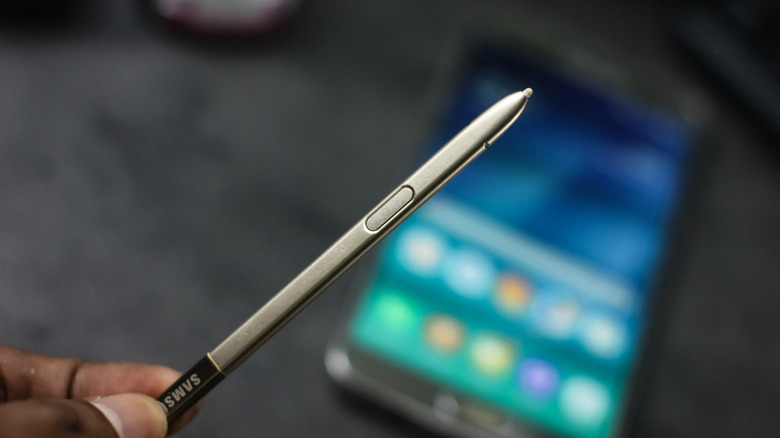
Leave your Galaxy S26 Ultra's S Pen in an office meeting room and the phone can warn you it hasn't been returned to its slot. That's useful until you realize that it can't tell you where inside the room it might be. The warning isn't a tracking feature, just a reminder.
Samsung retired the Galaxy Note series, but its S Pen lives on. The company introduced S Pen support to the Galaxy S21 Ultra in 2021 and added a built-in S Pen slot to the S22 Ultra a year later. The S Pen name has been used for a variety of pens, ranging from battery-free pens on older Galaxy Note phones to Bluetooth-enabled pens and larger styli for tablets and foldables. However, only one is officially compatible with SmartThings Find.
Which Samsung S Pens work with SmartThings Find?
Husain Parvez for Engadget
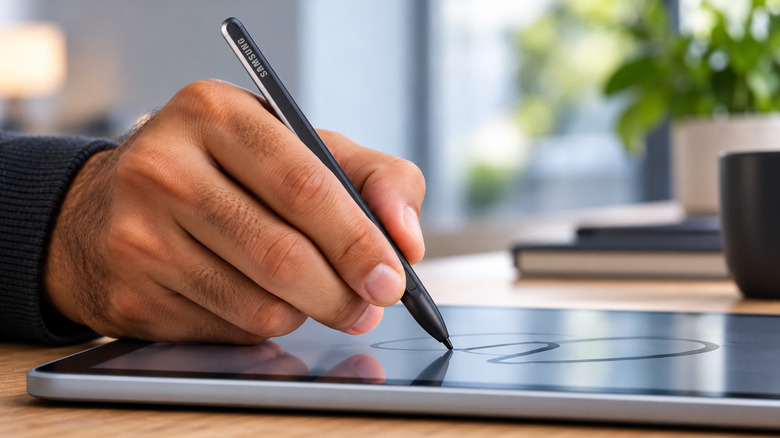
The S Pen Pro is the one you're looking for. Samsung unveiled it with the Galaxy S21 Ultra in January 2021, then released it alongside the Galaxy Z Fold 3 and Z Flip 3 that August (only the Fold 3 supports it). Compatible phones also include the Note 10 and Note 20 series, Galaxy S21 Ultra through S26 Ultra and Z Fold 4 through Z Fold 6.
Sold separately for $100, it's a larger, rechargeable stylus with a USB-C port under its cap, a dedicated pairing button and a switch for compatible Galaxy devices. It's also the only S Pen Samsung officially supports for tracking via SmartThings Find. There's one problem, however: it won't fit in the Galaxy S26 Ultra's built-in pen slot, which isn't exactly convenient for something you're worried about losing.
Bluetooth doesn't guarantee tracking functionality, either. In 2018, Samsung added a Bluetooth-enabled S Pen to the Galaxy Note 9, letting users remotely activate the camera and control some apps. Similar capabilities were carried over to later Note models and the Galaxy S22, S23 and S24 Ultra. However, none of their built-in S Pens can be found via SmartThings Find.
Samsung removed Bluetooth from the S25 Ultra's S Pen and the S26 Ultra was the same. Tablet owners also face variations. Some Galaxy Tab S Pens support Air Actions via Bluetooth, while others, such as the pen on the Tab S9 FE, don't. The S Pen Fold Edition and Creator Edition also lack Bluetooth, so neither supports SmartThings Find. Bluetooth support alone doesn't make an S Pen trackable, and Samsung's naming conventions don't make that distinction especially clear.
How to find a lost S Pen using SmartThings Find
To prepare the S Pen Pro for tracking, charge it, select the appropriate mode and hold its Connection button for three seconds. Tap Connect when prompted and make sure you're signed in to your Samsung account.
Next, open SmartThings, head to Life > Find and open the three-dot menu. Select Settings > Allow devices to be found and enable Offline finding. Offline finding needs to be enabled first, so you'll want to do this before losing the pen, obviously.
If you lose the S Pen Pro:
1. Open SmartThings > Life > Find and select the S Pen Pro, swiping between device cards or opening the device menu if needed.
2. Tap Refresh to update its location on the map.
3. Select More > Navigate for directions, or swipe up on the pen's details to access Navigate and Blink light, which flashes its indicator when searching nearby.
The separate Samsung Find app also lists the S Pen Pro under its Devices tab.
Participating devices are Galaxy phones or tablets with offline finding enabled. They can detect the powered-on S Pen Pro over Bluetooth and anonymously relay its location to Samsung without pairing with a pen. The setting may be selected by default when you sign in to (or sign up for) a Samsung account, but users can turn it off, so not necessarily every Galaxy phone is connected. The map may show its last reported location. Samsung also offers Encrypt offline location for privacy.
For other S Pens, refer to Settings > Advanced features > S Pen > More S Pen settings > Warn if S Pen is left behind (if available). As I mentioned earlier, the S26 Ultra can notify you if the pen is not placed in its slot for a while after the display is turned off. It won't pinpoint the pen's location, but a warning before you've gone too far could save you some searching.
If the pen is gone for good, make sure that the replacement pen you buy is compatible with your device. Samsung currently lists a replacement Galaxy S26 Ultra S Pen for $55 in the US.







 English (US) ·