.png)
Before blaming Bluetooth, check where your AirPods are getting their orders from.
photoschmidt/Shutterstock
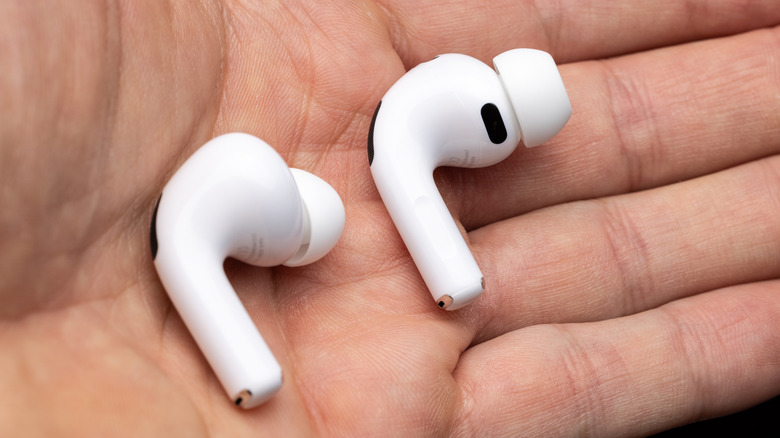
If your AirPods keep disconnecting, it's doubtful the AirPods themselves are broken, though that's always a possibility. The best course of action is a process of elimination, starting with checking automatic switching. This feature is available on all AirPods Pro and AirPods Max models, plus AirPods 2 or later.
Let's say you have your iPhone, an iPad and a Mac. If you use your AirPods on all three, or have in the past, those bothersome disconnections may not be disconnections at all, but rather the AirPods trying to bounce back and forth among all three devices. It's aggravating, but you need to make changes on all three to put a stop to it.
The setting you want is called Connect to this iPhone/iPad/Mac. First, put your AirPods in your ears. On iPhone or iPad, you should see your AirPods appear near the top of the Settings app. There, select your AirPods > Audio & Routing > Connect to this iPhone/iPad and choose When Last Connected to This iPhone/iPad.
Alternatively, or in System Settings on a Mac, open Settings > Bluetooth and select the little i in a circle next to your AirPods. If the AirPods aren't currently connected, choose Connect to This [Device] > When Last Connected to This [Device]. If they are connected, open the same Audio & Routing menu first.
If you mostly use your AirPods with one device, leave this setting on Automatic there and switch it to When Last Connected on your other Apple devices. That way, your AirPods will automatically connect to your most-used device when you put them in, but won't connect to your other devices unless you manually choose to use them. This won't fix every connection problem, but it will correct a common issue with using AirPods across multiple Apple devices.
You can also fully remove your AirPods using the Forget This Device option in the Bluetooth menu on any devices you never use them with.
Automatic Ear Detection can interrupt playback
The next time your AirPods disconnect, check to make sure they've actually disconnected by looking in the Bluetooth menu. AirPods have a feature called Automatic Ear Detection, which is enabled by default. It does what its name implies: detects when you remove your earbuds and automatically halts playback. It's a handy feature when you need to pull a bud out to hear what someone is saying, but if the sensor is misbehaving, it will interrupt your music for seemingly no reason.
Before you turn this off, it's worth making sure your AirPods are fitting properly. With your AirPods in your ears, go to the same AirPods menu mentioned above and hit Ear Tip Fit Test in the list. This will run a quick check to see if your buds have a good seal; if the tips you're using are the wrong size for your ears, or dirty, they're more likely to slip out.
Clean your AirPods and consider upgrading your earbud tips so they stay in and comfortable for long periods. It's important to clean the case too, as bits of earwax or trapped lint can block the electrical contact points and prevent one or both of your AirPods from charging. Special troubleshooting applies if only one of your AirPods isn't working.
In case this doesn't help or you want to disable the feature anyway, put your AirPods in and go back to Settings > AirPods > Audio & Routing, then disable Automatic Ear Detection. The process is the same on a Mac or an iPad. Now that it's off, check to see if the disconnections continue. If they do, check the audio of a download versus a stream; if problems only happen on the latter, network issues are causing your audio to stutter. And if you spend a lot of time close to a microwave, many other Bluetooth devices or heavy Wi-Fi activity, interference could be causing your AirPods to misbehave.
Having Siri turned on can interrupt playback if the assistant kicks in for whatever reason. You can eliminate that by jumping into Settings > Siri > Requests and setting the top option to Off, though this turns Siri off for your entire device as there's no toggle for the AirPods alone.
My AirPods are disconnecting from my Mac. What can I do?
Roman Larchikov/Shutterstock
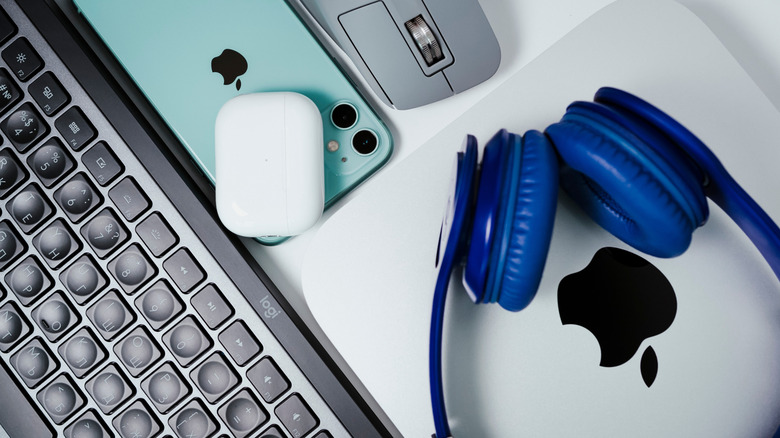
Start by eliminating the automatic switching feature on your other devices, as explained above. It's a pain because it's convenient to let your AirPods bounce to whatever device you're currently using. But when another device turns on, it becomes a battle between which one started playing audio most recently. If you typically move from device to device but don't always close the last one, it's best to keep Automatically selected on your primary and When Last Connected to on all the others.
Also, open Control Center at the top-right of your Mac's screen. Select Sound and confirm the output is set to your AirPods. Make sure you quit any apps that are vying for control of your AirPods. Check if your Mac is up to date, and you can let your AirPods run any pending firmware updates as well. To do this, connect the case to power and put both earbuds inside, closing the lid afterward. Leave them within Bluetooth range of your Wi-Fi-connected Mac, iPhone or iPad for at least 30 minutes.
If the connection failures continue to happen, unpair your AirPods from your Mac, restart the Mac and pair the AirPods again. As a last resort, you may have to do a full reset on your AirPods. The sequence depends on the model, so follow Apple's AirPods reset guidance.




 English (US) ·