.png)
There are multiple ways to adjust the audio output on your Android phone.
Max Miller for Engadget
A great pair of headphones or in-ear monitors alone isn't enough to get the best sound quality your Android phone can deliver. Digital audio is deceptively complex — you're essentially turning sound waves into code and then back into sound waves — but once you have a handle on the basics of how it works, you can eke better sound out of your devices.
To that end, it's important to understand how Android directs audio to your ears, and which layers in between can alter that signal. We'll also cover how to choose an app that supports lossless audio, as well as how to EQ your headphones for either a neutral sound or a profile of your choosing. Ultimately, you'll be able to choose whether you'd like to go the extra mile for full, audiophile-grade sound or simply get the best results from your music streaming app.
How Android handles audio (and why it matters)
There are some quirks to the way Android handles audio. Just plugging in your headphones won't automatically translate to the highest quality. Android's signal chain — the path audio follows through the system before reaching your ears — flows from the audio source (the app you're using to play your media) to the operating system, where a service called AudioFlinger passes it off to other layers like the mixer, where it might have effects applied or duck for a notification sound. This is where things get funky for audio enthusiasts, since we're looking for the pure sound signal in as unaltered a form as possible. After going through the mixer, audio is passed to the interface, technically known as the hardware abstraction layer (HAL), which transmits it to your hardware (wired or Bluetooth playback devices or your phone's speakers).
While all this is taking place, AudioFlinger is also sampling and downmixing the audio. By default, everything is processed in 32-bit floating point, which is to say, far higher quality than even a true lossless file is likely to need. Audio is then output at a sample rate of 48kHz with either 16 or 24 bits of depth. Since most lossless audio available to consumers tops out at 24-bit, and since human hearing sits below a 48kHz threshold, most people will be satisfied. But that behavior also means that the Android system is almost always making adjustments to audio. The average listener truly should not care about this and can skip forward a couple of paragraphs. But for those who want to go above and beyond in search of true, mathematical precision, things get a bit messy.
Mathematical precision in audio is also known as bit perfection, which means audio that remains untouched by mixing, resampling or other alterations along the audio chain. If the file you hear is mathematically identical to the one in your player, it is bit-perfect. While bit-perfect audio played from a lossless file is the gold standard for audiophiles, it actually cuts against another important aspect of achieving good sound quality that we'll cover later: EQing your headphones, which by definition alters the audio signal before it reaches your ears. However, because your phone may be applying its own changes to your audio before it reaches your ears, we need to get rid of any preexisting processing so that we can apply our own, custom tuning.
This is where lossless USB audio comes in. Starting in Android 14, an app can now address the mixer directly to tell it whether audio should be passed through the mixer as usual or sent directly through the audio framework to the HAL. But that only works if every layer of your audio stack is on board. Your phone maker must have implemented lossless USB audio, your player app must have done the same, your DAC must natively support the sample rate of your files, and so on.
That's a lot of information, but the steps you can take to act on it are simple. First, turn off any extra processing your phone is doing to your audio. That means an EQ in your device settings, any kind of Dolby or other spatial enhancements and anything else that may affect the audio signal.
Wired audio is the easiest path to perfection
Max Miller for Engadget
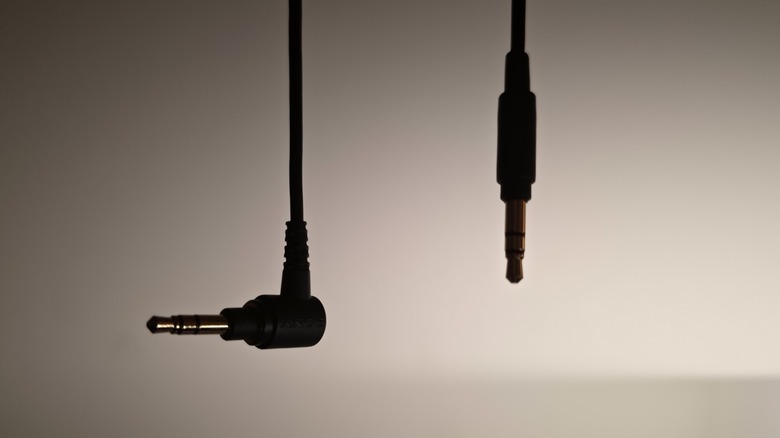
Wired headphones don't need to bother with finicky Bluetooth codecs, which makes wired audio the easiest way to achieve the highest possible audio quality on any device, including your Android phone. That doesn't mean all wired headphones sound good, but rather that even the crappiest pair of wired headphones receives every bit of the audio signal without losing any data due to wireless compression. Whether they can reproduce that detail is a different matter.
You probably don't have a phone with a 3.5mm headphone jack. That's unfortunate, since if you did, you could plug the headphones right in and call it a day. Instead, you'll need a digital-to-analog converter, more commonly referred to as a DAC. It takes the digital signal your phone sends through its USB-C port and converts it into an analog signal your headphone cable can understand. In any system with a headphone jack, you can assume the DAC is inside the device, so the primary benefit of a standalone DAC is that you get to choose it yourself.
DACs don't have to be entire boxes that sit on your shelf. Not only are there portable DACs, but even a USB-C-to-headphone jack dongle is technically a DAC. What actually matters is how capable the DAC chip doing the actual audio conversion is. Ideally, you want high-resolution decoding at up to 32-bit, 96kHz. Some USB-C-to-3.5mm adapters are active and do the audio conversion themselves, while others are passive and connect to the latent DAC inside your phone, which may be present even if a headphone jack isn't. Look up whether your particular Android device has an internal DAC and whether it's any good before choosing a passive adapter.
Some DACs are expensive, but you don't have to pay through the nose. Many audio enthusiasts strongly recommend the Apple USB-C-to-3.5mm headphone jack dongle available from practically every tech retailer as a basic, no-frills DAC. Of course, you can spend hundreds on a DAC if you so desire. You can also check out our list of the best DACs for lossless streaming in 2026.
Bluetooth is lossy but can still deliver great audio quality
Max Miller for Engadget
Bluetooth is widely reviled among audiophiles because it trades quality for convenience. There has traditionally been no such thing as lossless Bluetooth because the protocol does not have the bandwidth to support it. Currently, there is a single caveat to that rule we'll cover further down. With that said, some Bluetooth connections can deliver audio quality good enough that no human ear would notice the signal loss it introduces in a normal listening environment.
The standard Bluetooth codec, the thing that compresses and reads back the wireless data your phone transmits to your headphones, is Sub-band Codec (SBC). It is extremely lossy and tops out at 320 kilobits per second (kbps), or about as high-quality as an MP3 file can be, though it becomes much more stable at an even lossier 192 kbps. The other most common codec, Advanced Audio Coding (AAC), is notably used on iPhones but also many Android devices and tops out at 250 kbps. That's good enough for most people with most headphones to enjoy, but not great if you're interested in high fidelity.
However, there are high-resolution Bluetooth codecs, most notably Qualcomm's aptX and Sony's LDAC, each of which can push Bluetooth quality much higher than the norm. Because they are proprietary, you'll need to check whether your Android phone and headphones support them. There are multiple versions of aptX, including aptX LL, aptX HD and aptX Adaptive, the latter of which contains the aptX Lossless mode (Qualcomm, this is getting out of hand), which is capable of providing the highest audio quality of the bunch at up to 16 bits of depth and at 44.1kHz. While aptX Lossless is technically bit-perfect at that specific quality, it falls back to a lossy delivery at higher qualities, is only supported on a handful of phones that are mostly not available in the US and falls back to lossy if there are other wireless devices nearby.
Sony contributed its proprietary LDAC codec to the Android Open Source Project (AOSP), which comprises the core of any Android device's software, giving it broad compatibility with headphones that support it. It can deliver audio with up to 32-bit internal processing to match Android's mixer, but its actual output tops out at 24-bit, 96kHz.
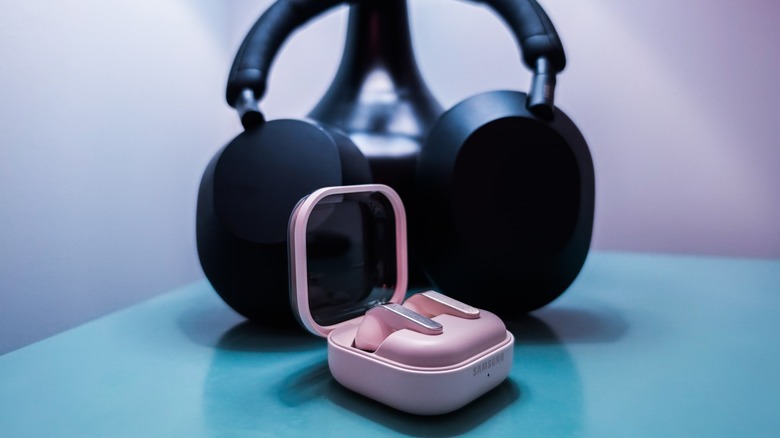
Because Samsung has the lion's share of the market, it's worth mentioning that Samsung Galaxy phones support aptX on some models, but more widely support LDAC. Samsung also has its own codec, Samsung Seamless Codec (SSC), which is used to provide 24-bit, 96kHz streams on devices like the Galaxy Buds 4 Pro.
As you may suspect, you'll need headphones that support one of those codecs in order to benefit from high-resolution Bluetooth. If yours don't, you're out of luck and will be stuck with SBC or AAC. Many of the best earbuds for Android have at least one such codec. Some enthusiast wireless headphones, like the recent Sennheiser HDB 630, are doing innovative things with high-res wireless dongles that work similarly to those that come with wireless computer mice.
You'll also need to make sure that Android isn't fighting your hi-res codec. If your headphones have a companion app, the toggle for aptX or LDAC may be buried in that app's settings. Yet another toggle is in Android's Bluetooth settings, found by tapping the gear icon next to the listing for a connected pair of headphones. Lastly, if you're sure your phone and headphones both support a high-resolution Bluetooth codec, and it's not working, you may need to enable developer settings on your phone and toggle it on. My own device, a Samsung Galaxy S25 Ultra, has a toggle in developer settings for HD audio, as well as a Bluetooth audio codec menu where LDAC can be selected while using my Sony WH-1000XM5 headphones. I have another three menus for sample rate, bits per sample and LDAC quality (for this, Best Effort is usually the best, but Optimized for Audio Quality will risk some connection stability issues in order to push the quality as high as possible).
Player apps are the heart of an Android audio setup
Max Miller for Engadget
The most consequential decision you'll make while trying to maximize your audio quality on Android, aside from your choice of playback device, is your player app. If you're not aiming for bit-perfection (which most people aren't, especially since it can't be achieved over Bluetooth), the most popular music streaming apps are all fair game.
Spotify, Apple Music, Tidal, Qobuz and more all support lossless audio, with Spotify providing the lowest quality ceiling of the pack at 24-bit, 44.1kHz, while Tidal and Qobuz host tracks at up to a respectable 24-bit, 192kHz. Use your favorite pair of wired headphones or hi-res Bluetooth cans and jam out.
For the true audio freaks who want bit-perfect audio, only Tidal and Qobuz can satisfy, as both can hook into a third-party player to bypass the Android mixer. The latter also has an a la carte high-resolution music store, so you can easily grab local files of your favorite songs.
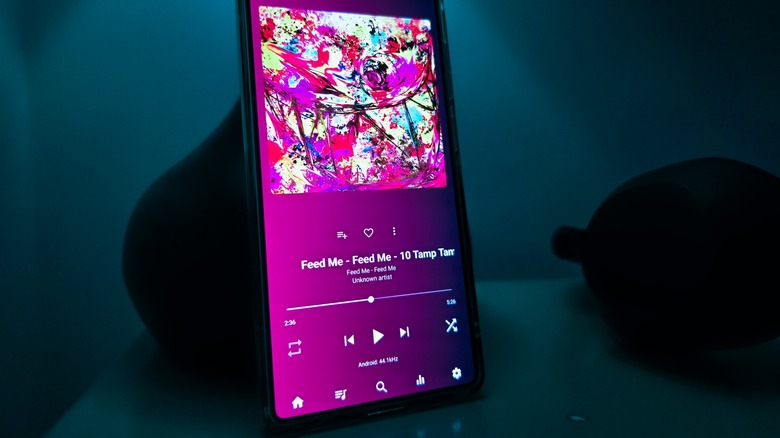
Which brings us to local players. You'll need one to play your actual music files in the highest quality. The two most robust apps for Android audiophiles are USB Audio Player Pro and Poweramp. Which you prefer will come down to what your priorities are. Both have a bit-perfect mode which also happens to work with Android 13 and earlier, as each app uses its own method to achieve bit-perfect outputs rather than relying on the Android 14 implementation.
My own preference is USB Audio Player Pro. The app also costs $9 at filing time, which could be a deal-breaker for some, and is probably only worth it if you know you'll use its advanced features. Poweramp will let you use some of its features for free, but an $8 in-app purchase unlocks the full version. Both paid apps focus on their own enthusiast features. Poweramp has plenty of DSP tweaks, including the ability to see your entire audio chain visualized and make adjustments. Where USB Audio Player Pro strikes a solid win is in its ability to stream from internet sources including Tidal and Qobuz, but also Dropbox, UPnP and DLNA servers, self-hosted OpenSubsonic servers, and network-attached storage. If you'd prefer not to manually move audio files to your phone in order to play them back, these streaming features provide an easy alternative.
EQing your headphones trades bit-perfect audio for personalized sound
Max Miller for Engadget
The very last step in your Android audio journey is EQing. As noted earlier, the quest for bit-perfect audio is in tension with digital signal processing, or DSP. The term simply refers to making changes to a digital audio signal, and it encompasses everything from equalizing your audio mix to making time alignments with multiple speakers. If you touch the signal deliberately, you're using DSP, and if nothing touches it at all, it's bit-perfect. If you want a pure signal, you can ignore EQing.
However, EQing is important, especially in consumer audio. Most consumer headphones aren't going to sound the way you like right out of the box, as everyone's taste and sense of hearing are different. The best of both worlds, then, is to apply targeted DSP to an otherwise bit-perfect stream in order to achieve a consistent result.
When EQing, you'll choose one of two goals. Some people aim for a flat, neutral sound, meaning complete bit-perfection with no adjustments to the way the source file naturally sounds. Others want a sound profile customized for them. For example, if you like exaggerated bass, you can boost those frequencies. This is where making sure Android audio is otherwise bit-perfect pays off, even for those who don't want a bit-perfect listening experience, since we can now make precise EQ changes to an otherwise unaltered signal.
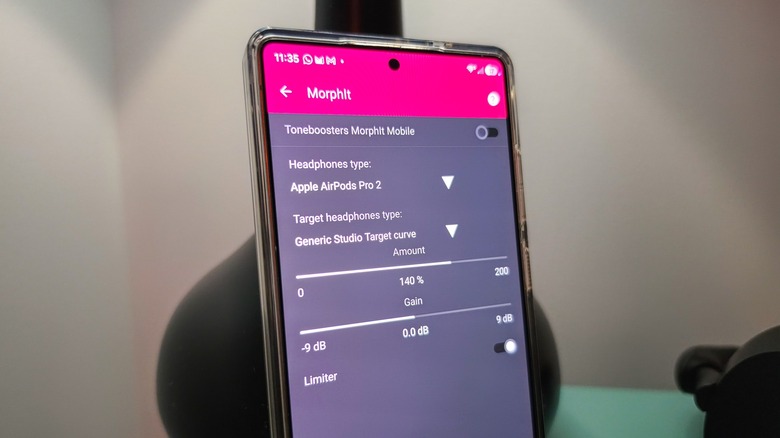
If you're going all in, you've got USB Audio Player Pro installed and are using bit-perfect mode with wired headphones. That means you'll need to use the app's built-in tools to EQ your headphones, or else use an external hardware device. More likely, you have no reason to care about bit-perfection and are sticking with something like Spotify that runs through the system mixer with no other effects applied. Either way, you need to build an EQ preset.
You could EQ manually and should feel free to do so. However, these days, it's much more fashionable to let the professionals handle things. Head to autoeq.app and use the search box at the top to find your pair of headphones or in-ears. Select them, then you'll see some frequency graphs. Select your EQ app from the drop-down menu under those graphs, then save as a text file. Import that file into USB Audio Player Pro's Parametric EQ if you're using that app. AutoEQ even has exportable settings for Spotify's built-in equalizer. However, many audio enthusiasts on Android are currently using Wavelet, which will run in the background and apply a consistent EQ to all of the audio from your phone when connected to headphones. Remember that you'll need a separate EQ preset for each different pair of headphones.
All that's left to do now is kick back, throw on some jams and enjoy the best sound quality Android has to offer.






 English (US) ·